Seven Git commands cover most of what you do day to day: getting a repository, syncing it, switching branches, staging, committing, sharing your work, and managing branches.
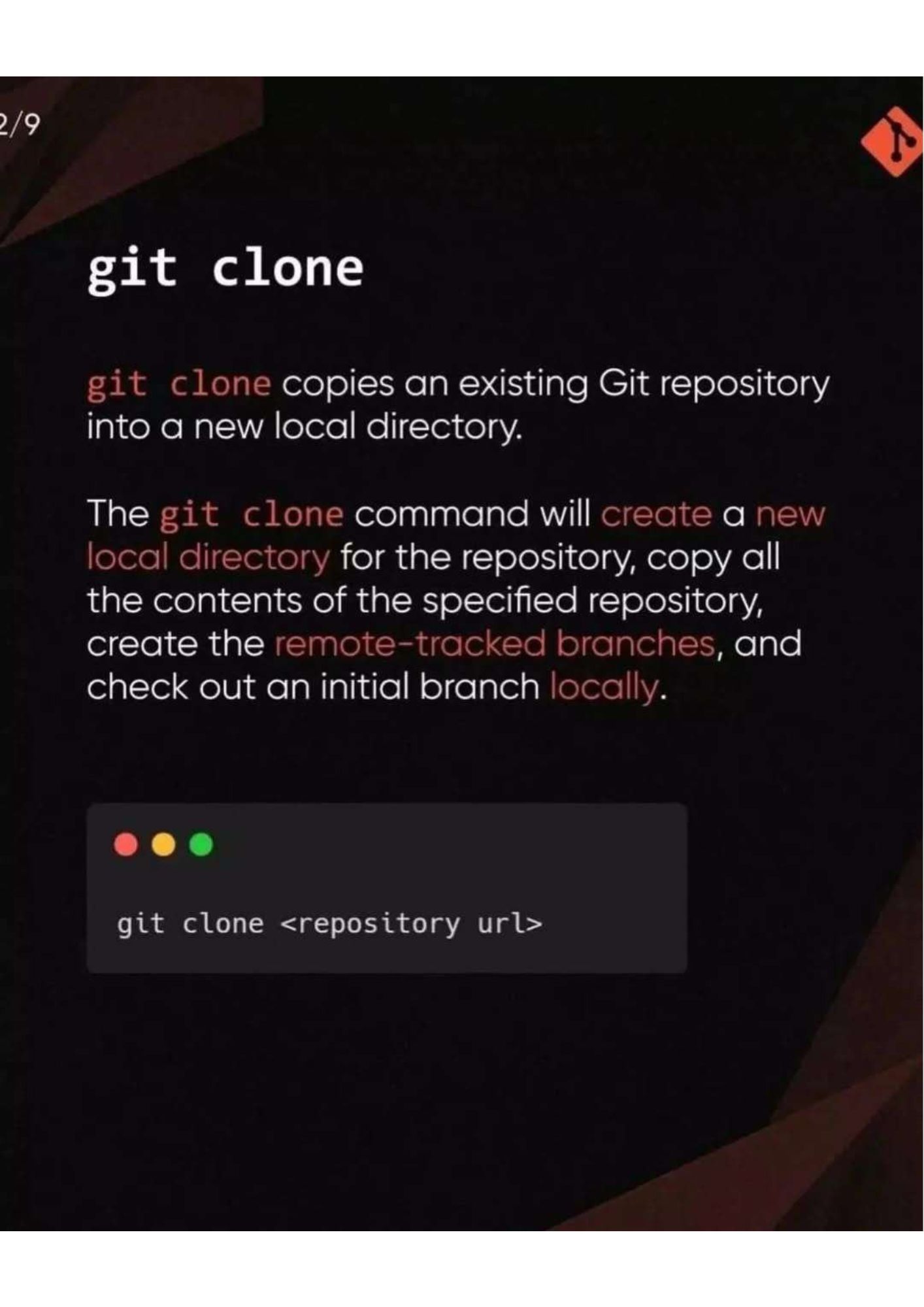
1. git clone
git clone copies an existing Git repository into a new local directory. It creates the directory, copies all the contents of the repository, creates the remote-tracked branches, and checks out an initial branch locally.
git clone <repository url>
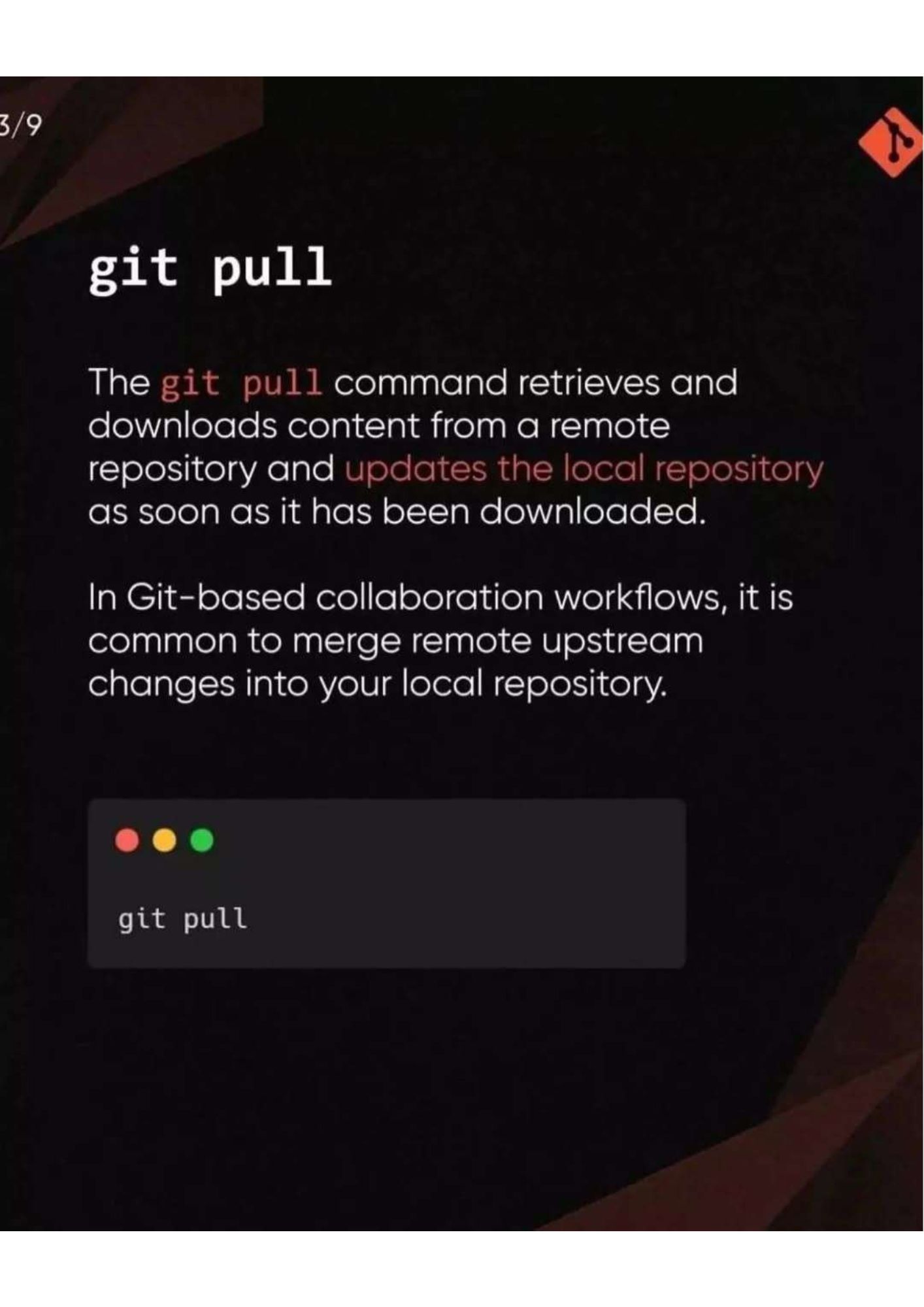
2. git pull
git pull retrieves and downloads content from a remote repository and updates your local repository as soon as it has been downloaded. In Git-based collaboration workflows, it is common to merge remote upstream changes into your local repository this way.
git pull
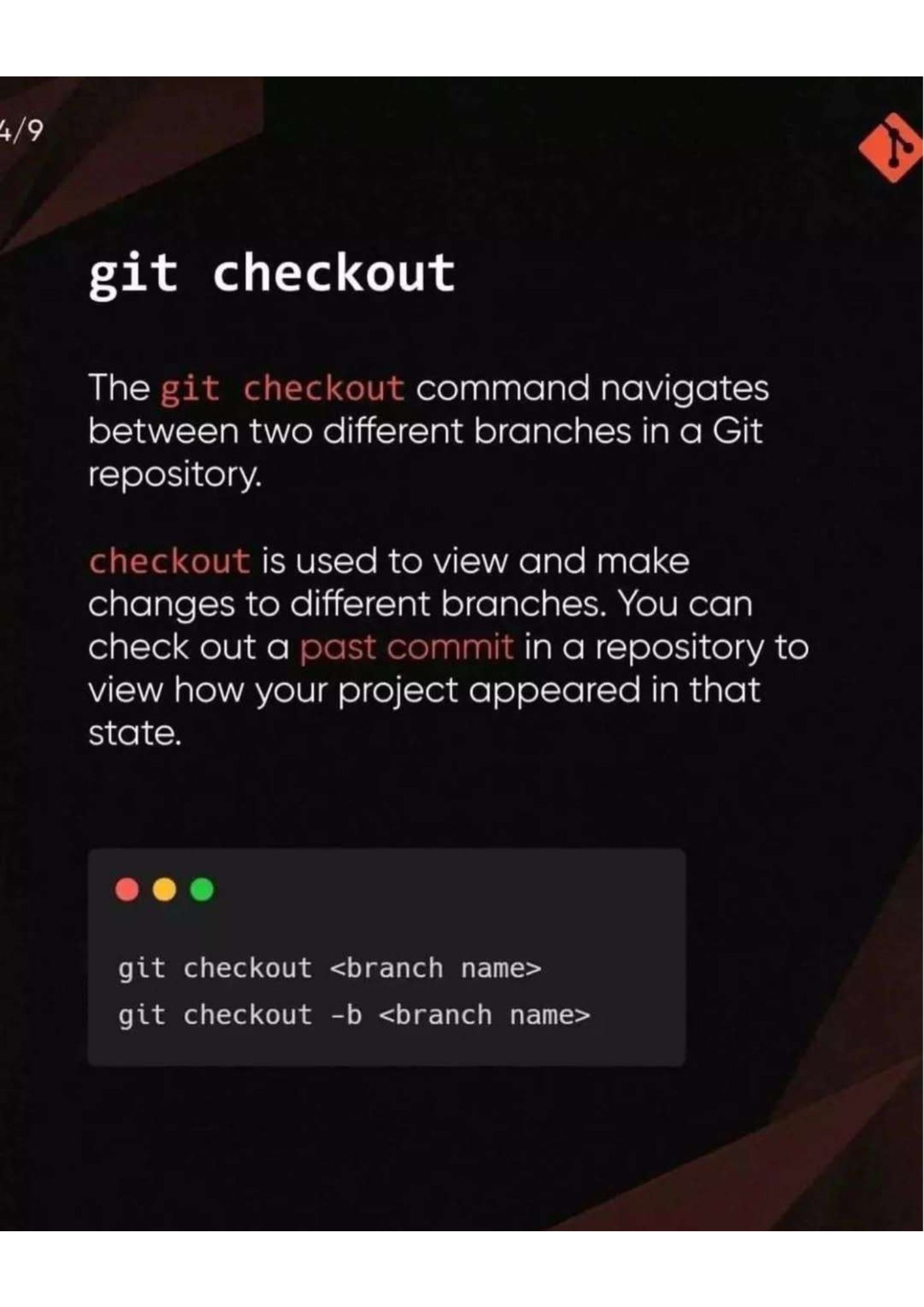
3. git checkout
git checkout navigates between branches in a repository. You use it to view and make changes on different branches, and you can also check out a past commit to see how your project looked at that point.
git checkout <branch name>
git checkout -b <branch name>
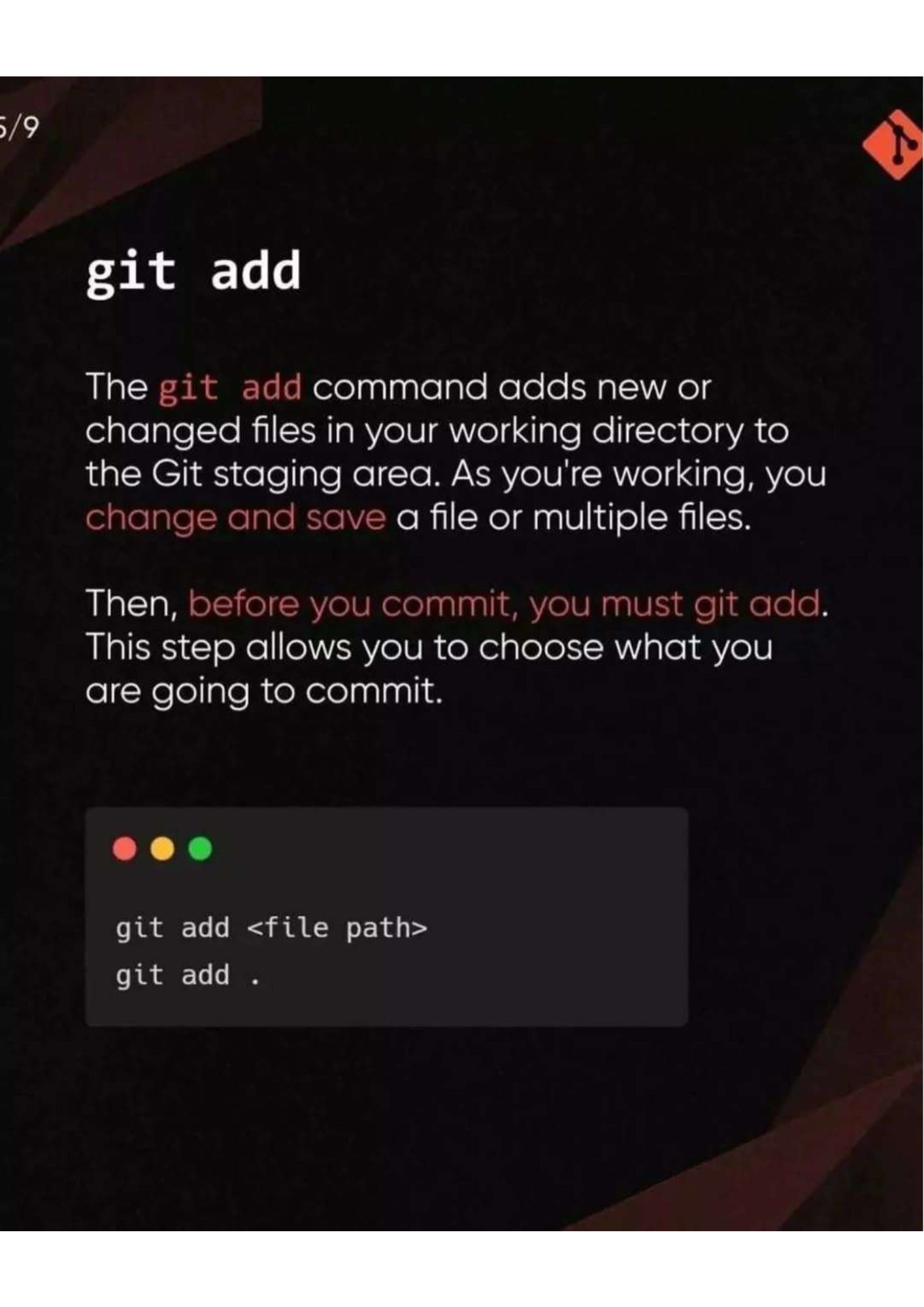
4. git add
git add moves new or changed files from your working directory to the staging area. As you work, you change and save one or more files; before you commit, you must git add them. This step lets you choose exactly what goes into the next commit.
git add <file path>
git add .
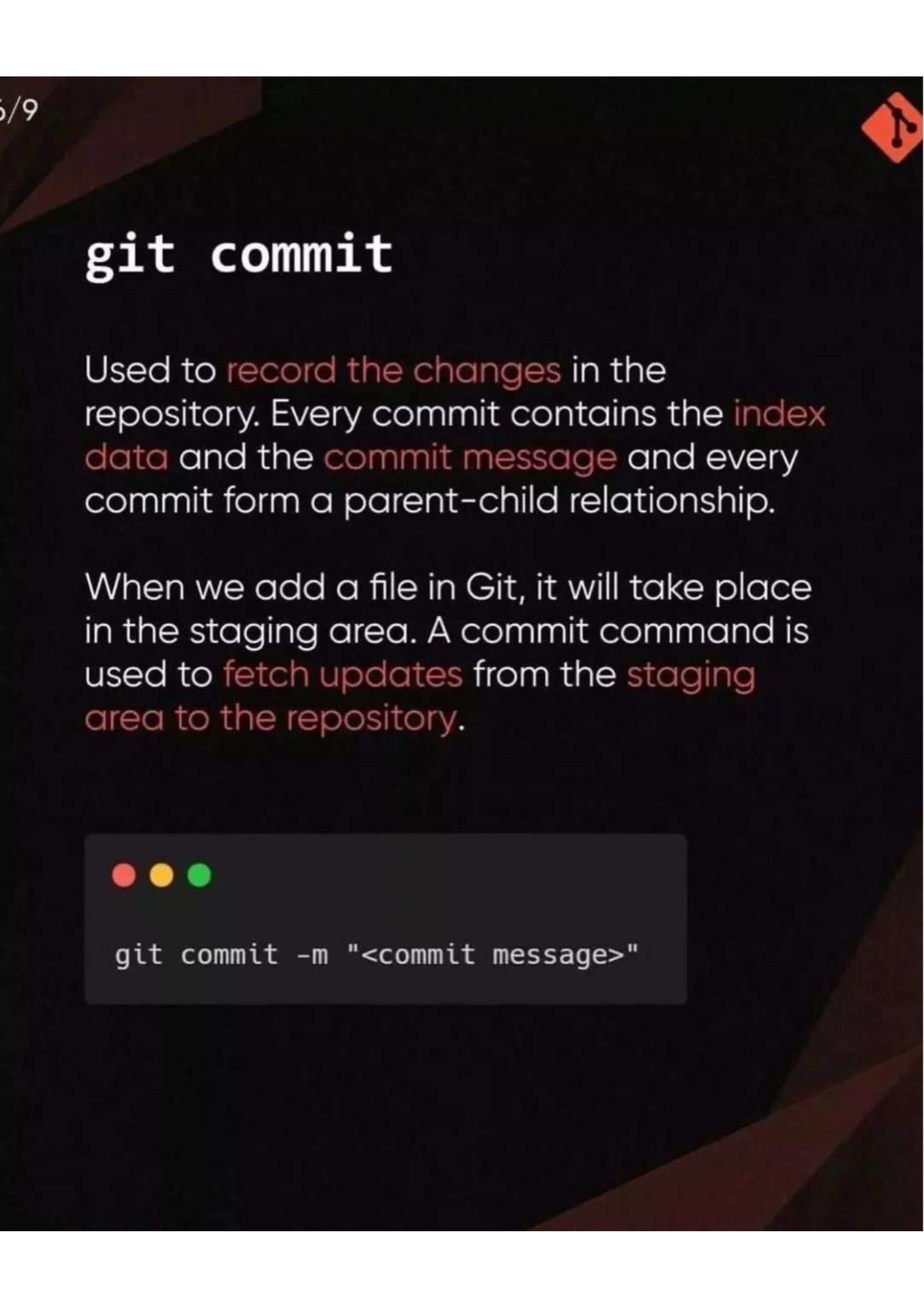
5. git commit
git commit records the changes in the repository. Every commit contains the index data and the commit message, and commits form a parent-child relationship. Files you add go to the staging area first; the commit moves them from the staging area into the repository history.
git commit -m "<commit message>"
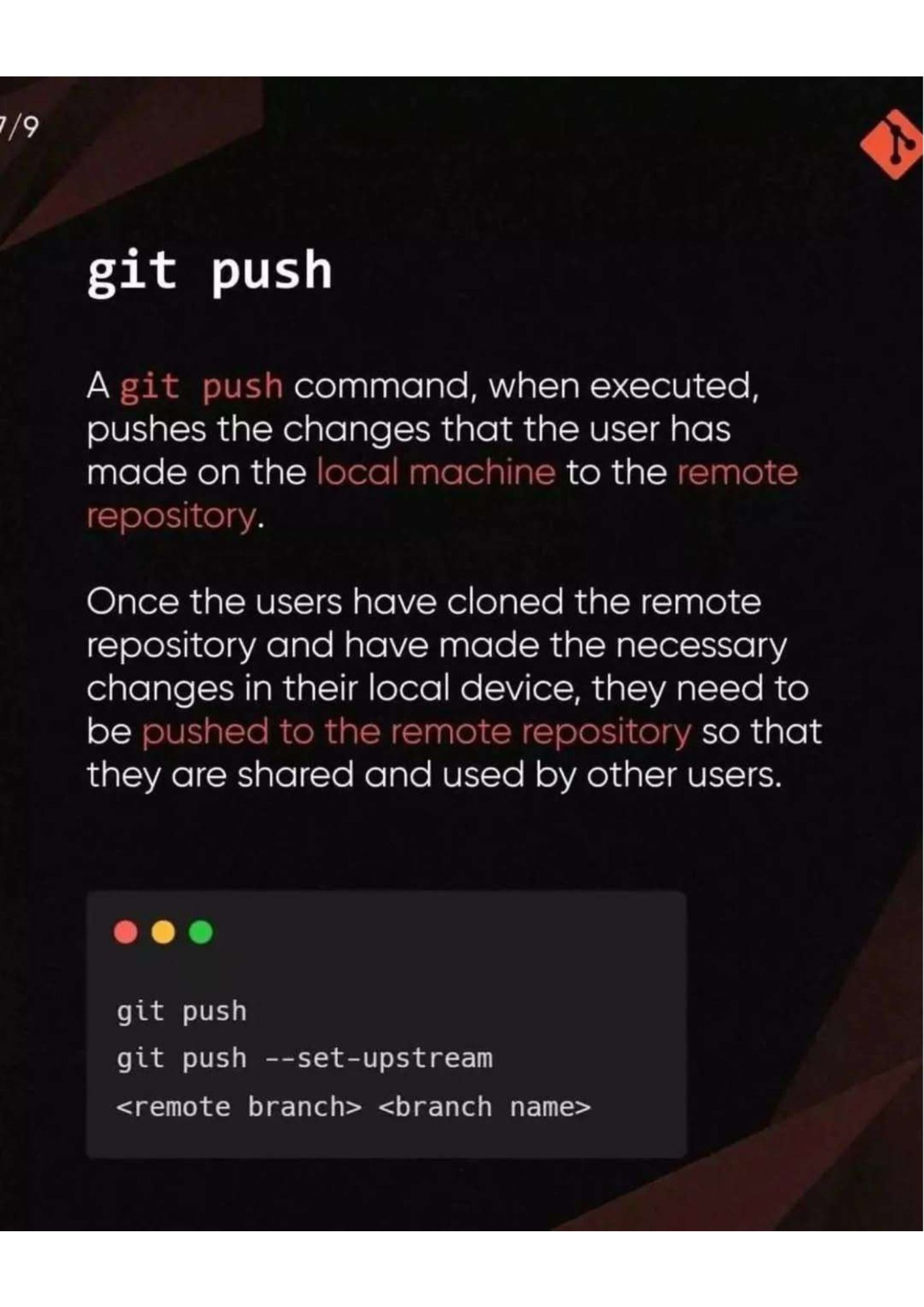
6. git push
git push sends the commits you made on your local machine to the remote repository. After cloning a repository and making changes locally, you push them so other people can see and use them.
git push
git push --set-upstream <remote branch> <branch name>
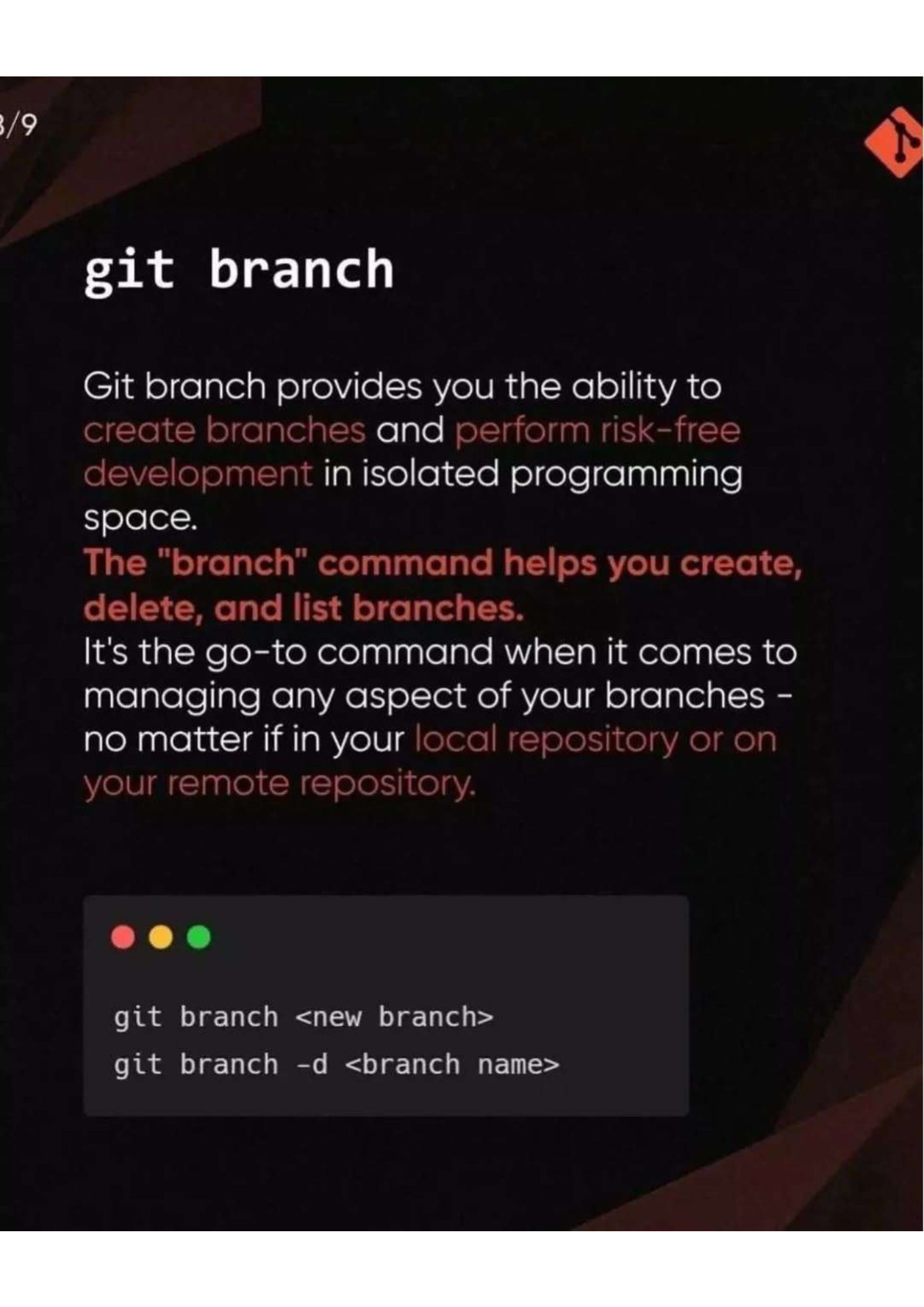
7. git branch
git branch lets you create branches and develop risk-free in an isolated space. It creates, deletes, and lists branches, and it is the go-to command for managing branches in your local or remote repository.
git branch <new branch>
git branch -d <branch name>